How To Use The Electrum Wallet
This guide contains detailed steps on how you can install and use the Electrum Wallet.
By Victor

Electrum is a secure, fast, and easy-to-use wallet designed only to support the Bitcoin network. It is free software released under the MIT License. That means any user can run the Electrum server and the application will verify the transactions in the Bitcoin network.
The application also provides support to hardware devices like Ledger, Trezor, and Keepkey. Also, the Electrum wallet is available for various operating system users i.e Windows, Linux, Python, etc. So, in this article, we will explain how you can install and set up your Electrum wallet for Android devices.
Table of Contents
- How to Install the Electrum Wallet?
- 1) How to Install the Electrum Wallet on Android
- Different Types of Electrum Wallets
- How to Set Up Your Electrum Wallet
- How to Create a New Electrum Wallet
- Source: Electrum
- How to Receive Funds on Electrum Wallet
- How to Send Funds on Electrum Wallet
- How to Create an Electrum Wallet
- Electrum Wallet Settings
How to Install the Electrum Wallet?
First, to install the Electrum wallet, visit the official website
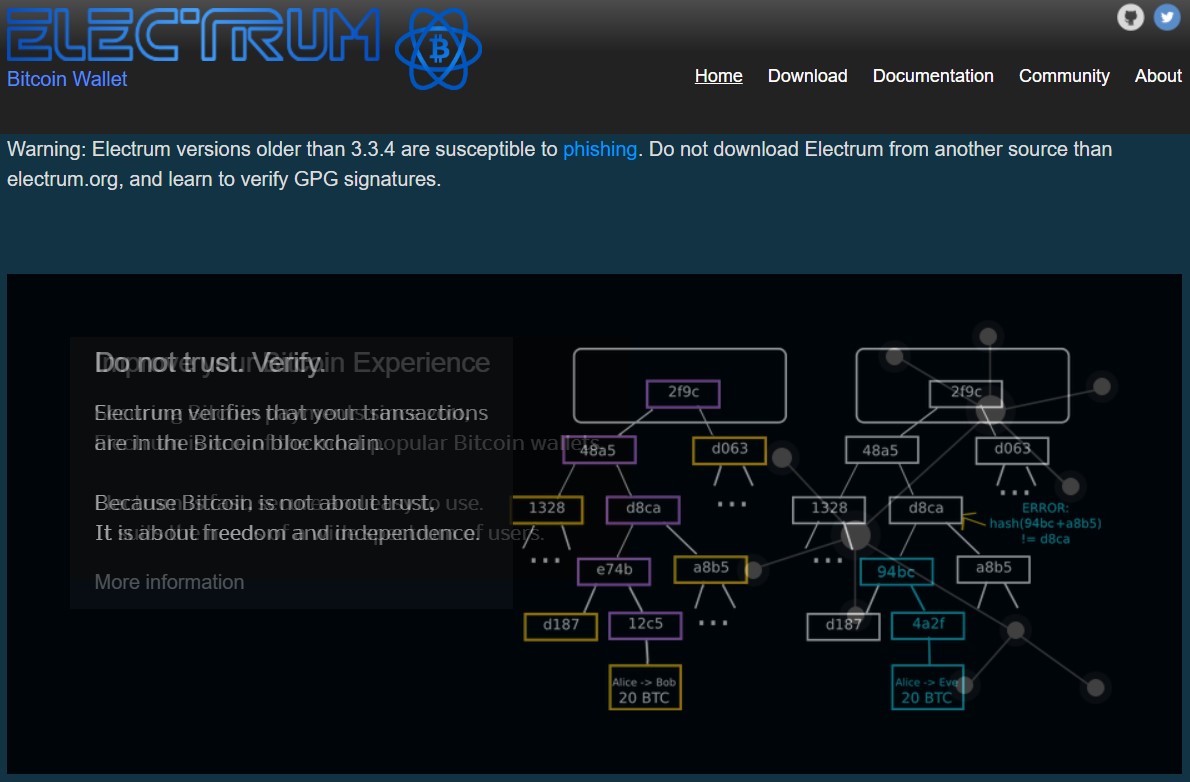
Then, on the main page, you may notice a warning message regarding the application versions that are prone to a phishing attack. Therefore, users are advised to download version 3.3.4 or above for secure transactions.
Now, you need to click on the Download button appearing at the top of the page. Therefore, users will get the option to download the application for different Operating systems.
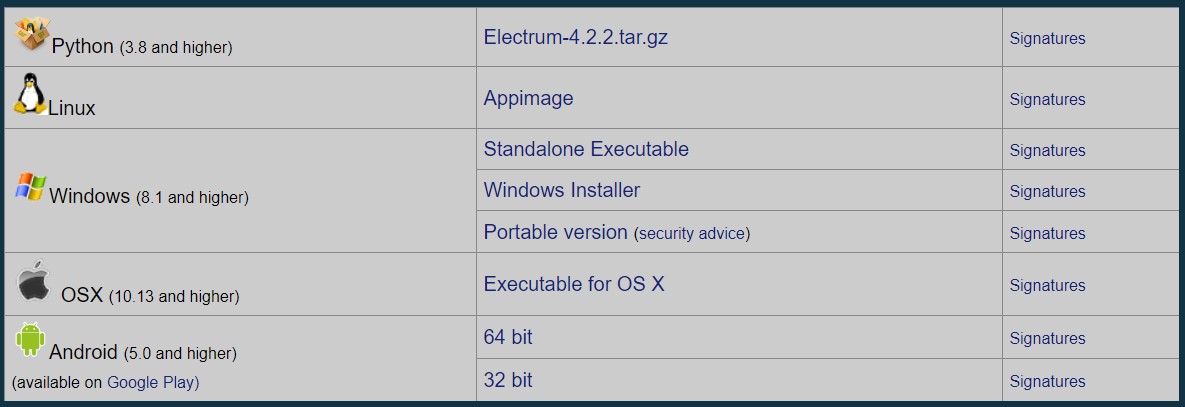
Source: Electrum
Select your desired option.
1) How to Install the Electrum Wallet on Android
Search for the Electrum Application on the Google PlayStore.
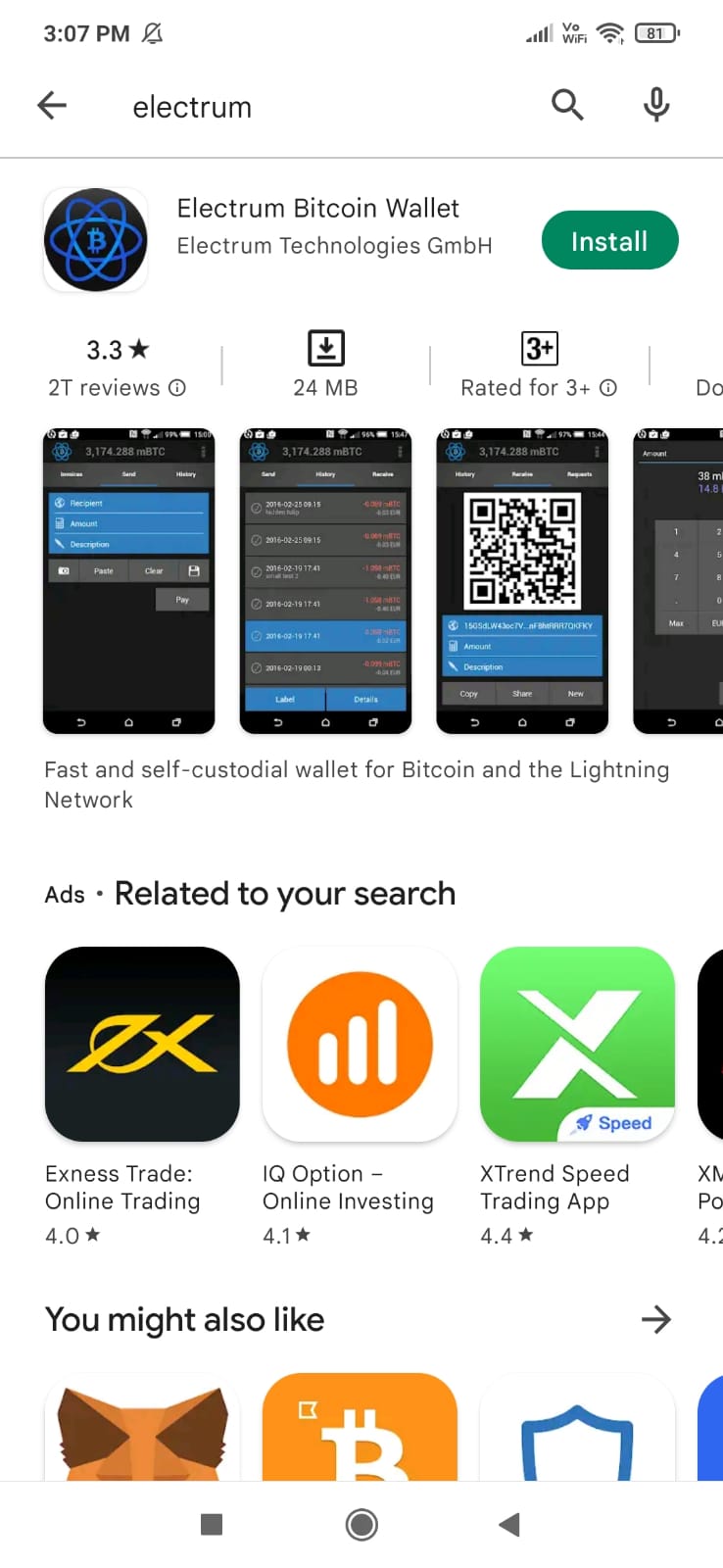
Now, click on Install, and the application will get downloaded to your device.
Different Types of Electrum Wallets
Then, we will now explain the different wallet types in detail so that you can decide what wallet type you need:
- Standard Wallet- Uses single private keys for each address.
- Wallet with two-factor authentication- Requires the users to set 2FA. Users need to provide the security code generated in their Google authenticator application whenever he/she initiates any withdrawal/address whitelisting activity. Therefore, this method is considered the most- secured method as the code is randomly generated.
- Multi-signature Wallet- A multi-signature wallet requires approvals from multiple users to sign a transaction. Then, when you set up the Electrum wallet for the Multi-signature wallet, you can define the number of persons (known as co-signer) it will have. And also the minimum number of signatures required to approve a transaction.
You can install the Electrum wallet on multiple devices (having different private keys, different or same owner). When a transaction is triggered, it needs to be signed by the minimum number of owners (specified during setup) to approve the process. This method is also secured as it requires more than one person to approve a transaction.
- Import Bitcoin address or Private keys- Wallets are created using private keys generated by other software
How to Set Up Your Electrum Wallet
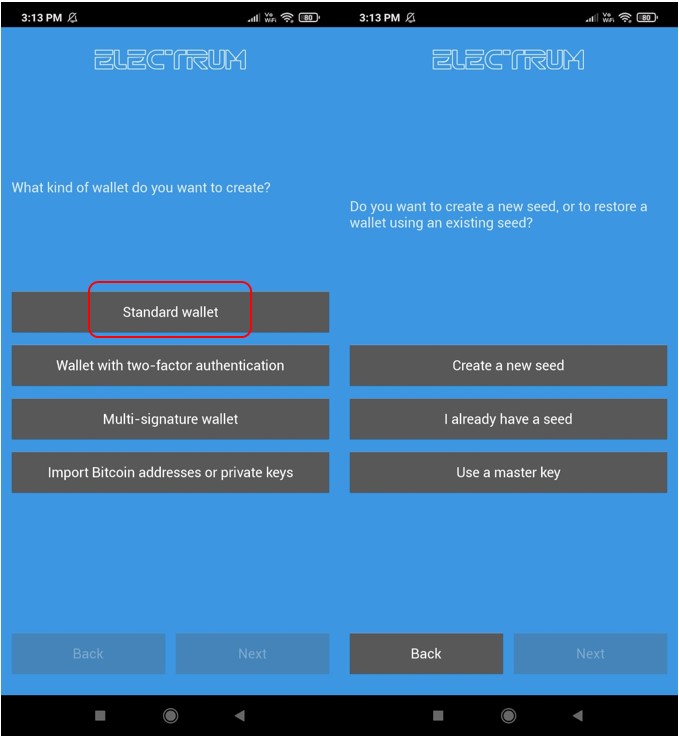
On the other hand, to setup your electrum wallet, you need to select the kind of wallet that you wish to create. If you want to create a simple wallet, then go for Standard Wallet. Next, you will find the below options for wallet setup:
- Create A New Seed
- I Already Have A Seed
- Use A Master Key
Source: Electrum
The First option i.e Create A New Seed will let you create a new Electrum wallet. Then, existing users can again set up their accounts on different devices by using the seed phrase. All they need to do is to select option 2 i.e I Already Have A Seed. This option requires you to enter the 12-word backup phrase. Once you provide the key phrase correctly, your account will be imported.
How to Create a New Electrum Wallet
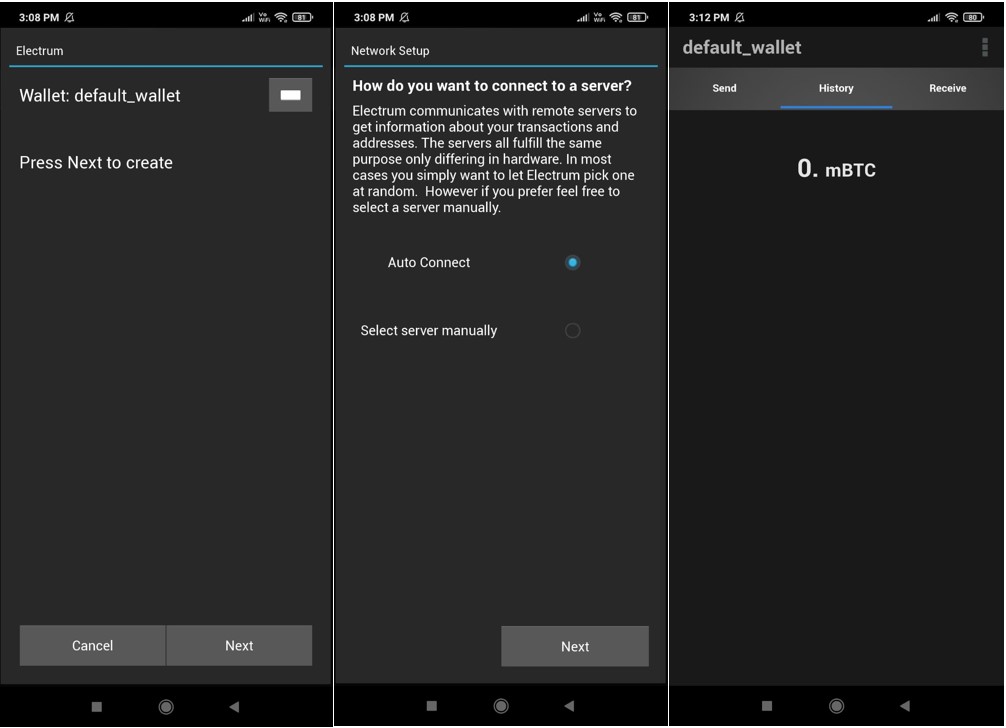
New users who wish to create a new wallet need to select this option. Next, the application will show your 12-word backup phrase, and ask you to verify your key phrase.
Note: A 12 or 24-word backup phrase is important to recover your account and its associated funds in the future in case you lost your device. Therefore, store your key phrase safely. If you lost access to it, you won’t be able to get your funds back. Or if someone gets access to it, they can steal your assets.
The application will now prompt you to set your wallet’s password. Once done, you can see the landing (History) page.
Source: Electrum
How to Receive Funds on Electrum Wallet
Then, to receive BTC in your wallet, you need the receiving address. However, the process of getting the receiving address is not easy as any other network.
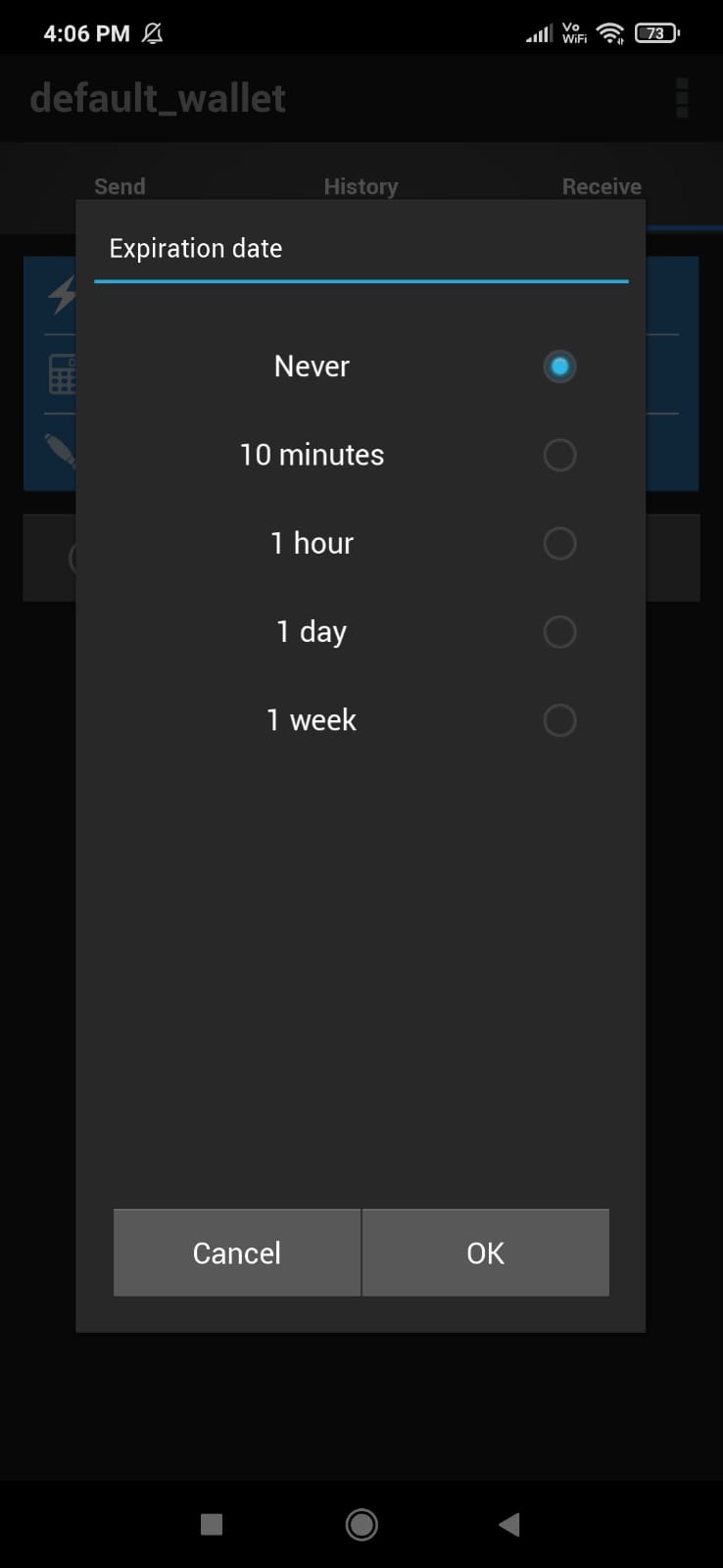
First, go to the Receive tab. Then, you can change the expiration date to Never.
Now, in Receive tab, you can see a few fields:
- Lightning
- Amount
- Description
Fill the Amount, and description field. Now, click on Request. Then, you can see your submitted request at the bottom.
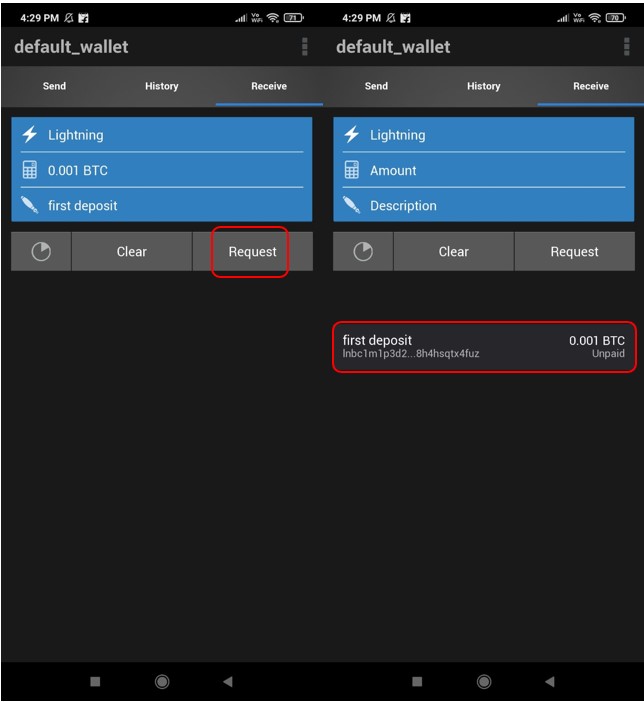
Note: The amount that you enter is only for your reference. The sender can send any amount to the address.
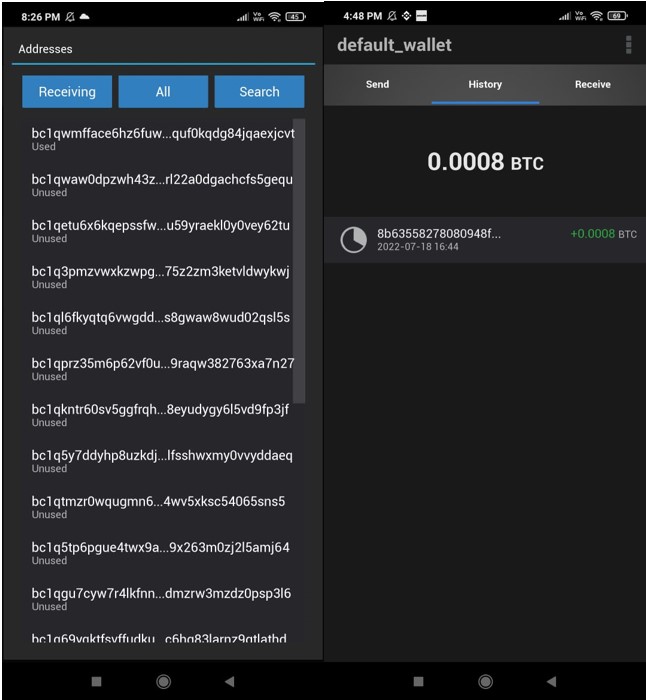
Next, go to the Address section. Here you can see the list of all unused addresses that you can use to receive BTC. Then, select and copy any address. You can use this address to receive BTC.
How to Send Funds on Electrum Wallet
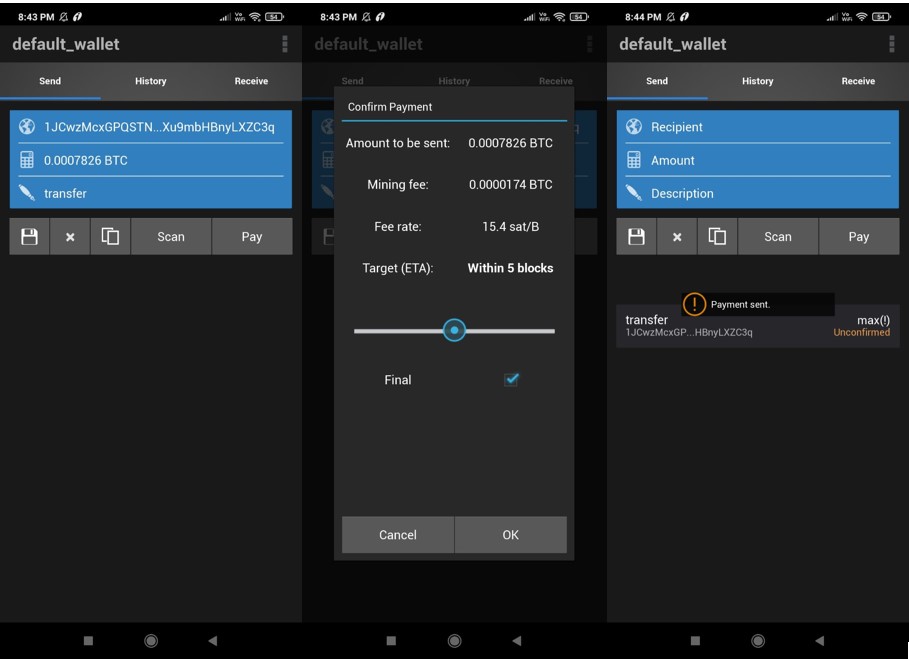
To transfer BTC from your Electrum wallet, you need to fill in the below details:
- Recipient address
- Amount
- Description
Now, click on Pay. A window will appear where you can check the ETA and mining fee required for the process. Then, once you are satisfied, confirm the process.
How to Create an Electrum Wallet
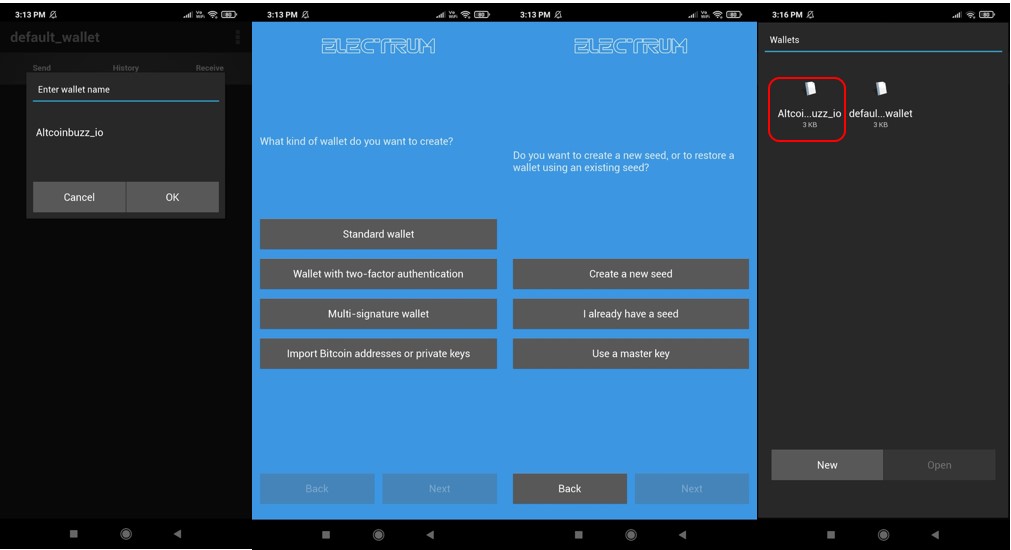
In addition, under the Wallets section, you can check the wallet that you have created. Then, if you wish to create another wallet, you can do that by clicking on the New button. Therefore, this will create a new wallet with the different key phrases. So, follow the below steps to create a wallet:
- Click on New
- Give a unique name to the wallet
- Select the type of wallet you wish to create (Standard wallet, Multi-sig wallet, etc)
- Select the kind of wallet (new, existing)
- Backup and verify your seed phrase
Then, you can now check your newly created wallet in the Wallets section.
Electrum Wallet Settings
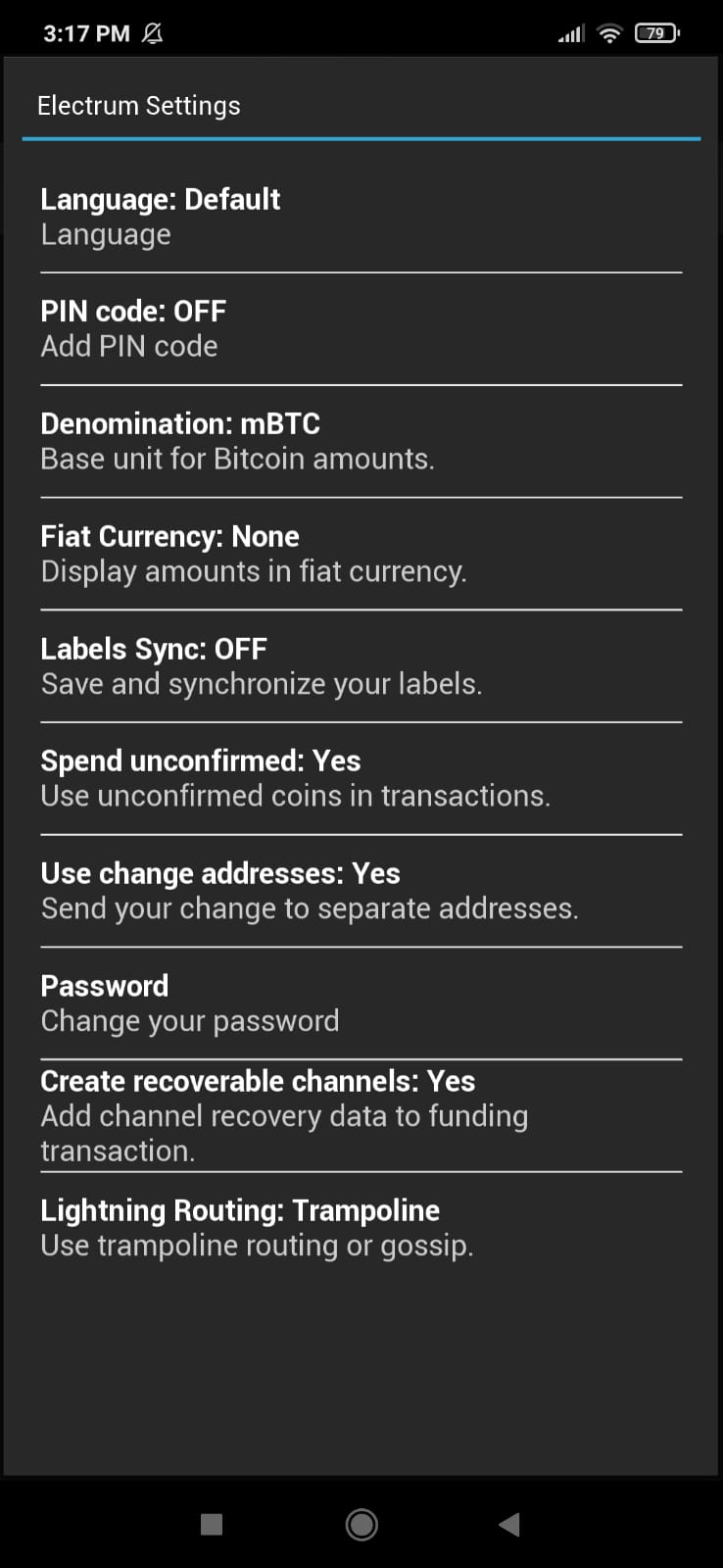
Moreover, from the Settings page, you can check the below parameters:
- Language- set to default. Many languages are available, if you want, you can select any
- PIN Code- Add/reset your PIN here
- Denomination- The different denominations are BTC, mBTC, bits, and sat. Then, you can select any to change your wallet balance in that denomination
- Fiat Currency- set to none
- Labels Sync- enable/ disable the option to sync your wallet across devices
- Spend Unconfirmed- set to Yes (default)
- Use Change Address- set to Yes (default)
- Password-Change your wallet’s password from here
- Create Recoverable Channels- set to Yes (default)
- Lightning Routing- set to Trampoline (default). You can select your lightning routing as Trampoline or gossip
Finally, we recommend our users not change any default setting until they have the proper knowledge.
⬆️Also, for more cryptocurrency news, check out the Altcoin Buzz YouTube channel.
⬆️Above all, find the most undervalued gems, up-to-date research, and NFT buys with Altcoin Buzz Access. Join us for $99 per month now.
Next up

Bitcoin ETFs Draw $1.07B in Three Days, Short of Rally-Era Pace
US spot bitcoin ETFs took in about $1.07 billion from Oct. 19 to 21, led by IBIT. Past steep rallies ran on months of $200 million-plus daily inflows.
 BTC
BTCRelated
More in Crypto NewsRelated
Bitcoin Drops Below $80K as Crypto Liquidations Top $834M
BTC ETH
ETH
Sui's Hashi Adds Anchorage Digital as $500M Bitcoin Launch Nears
BTC SUI
SUI
Bitcoin Core Speeds Up Fixes for AI found Bugs Drops
BTC
Bitcoin ETFs Lose $635M in a Day as DWF Study Says Flows Chase Price
BTC