How to Install and Use the Binance Chain Wallet
Binance Chain Wallet is a browser extension wallet that allows users to connect with multiple networks. This article contains detailed steps on how you can install and set up the wallet application.
By Victor
Binance Chain Wallet is an extension wallet that allows the users to connect with Binance Chain, Binance Smart Chain, and the Ethereum network. It is the official cryptocurrency wallet by Binance by which users can transfer funds on the supported networks.
The Binance Chain Wallet is currently available for the Chrome, Firefox, and Brave browsers. The wallet supports a very interesting feature called Wallet Direct by which users can connect their Binance account with the Binance Chain Wallet, thereby allowing the easy transfer of funds between these accounts. It also allows you to stake your BNB using the wallet application.
In this article, we will explain how you can install and set up the Binance Chain Wallet on the Google Chrome browser.
Table of Contents
Toggle- Wallet Installation (Google Chrome Browser)
- Create a Wallet
- Network
- Receive
- Send
- Add Token
- Different Options Available on Wallet Landing
Wallet Installation (Google Chrome Browser)
To install the Binance Chain Wallet, Go to this page.
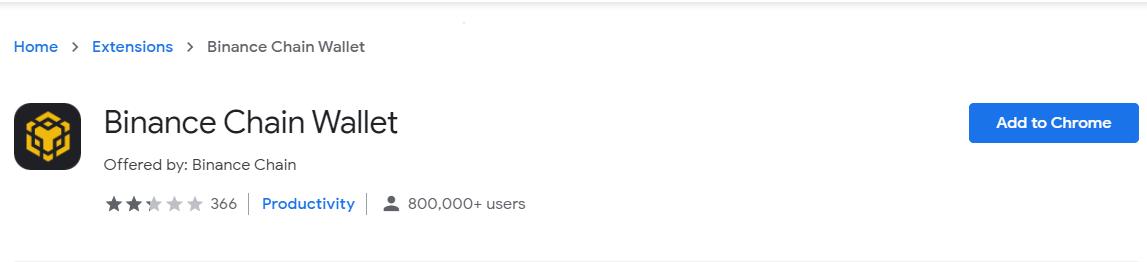
Click on Add to Chrome, and you will see the below icon appearing on your browser extensions.

Click on the icon, and it will give you the following options to set up your wallet:
- Create new account
- Use existing account
Create a Wallet
If you are a new user, then click on Create Wallet.
Users can create a new wallet by using their Gmail account. To create a wallet using your Gmail account, click on Continue with tKey via Google.
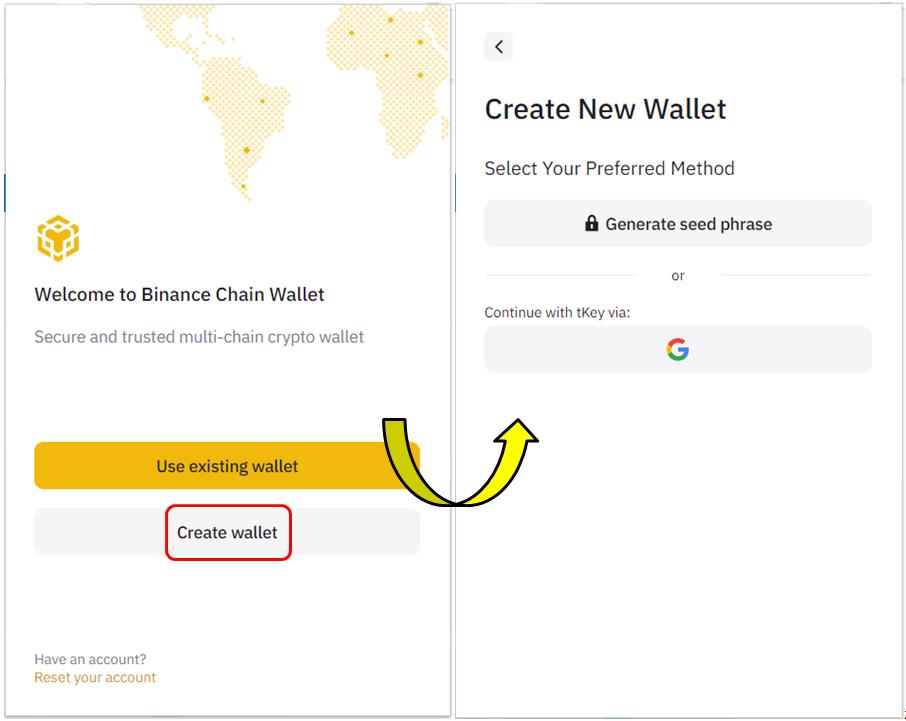
It will ask you to fill in your Gmail address and password. Next, the application will ask you to set up a wallet password and will show you the 12-word backup phrase that you need to store safely. Finish the process and you are in. You can now see the wallet landing page.
Network
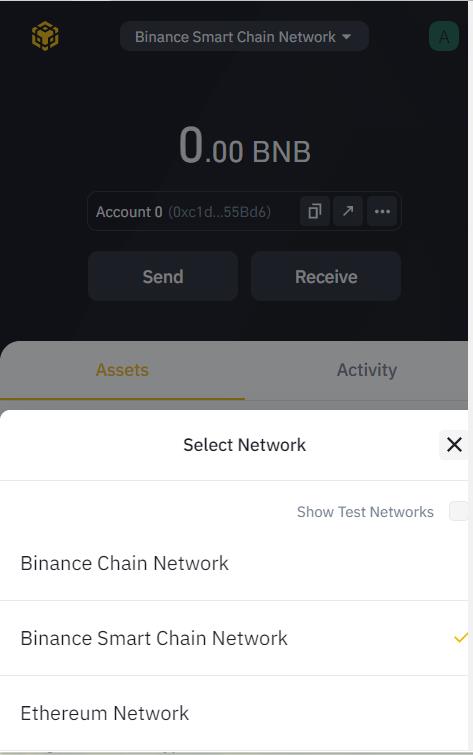
The Binance Chain Wallet supports the below networks:
- Binance Chain Network
- Binance Smart Chain Network
- Ethereum Network
You can select and work with any of the networks.
Receive
Users can get their wallet address by clicking on the Receive button. Once you click on the receive button, you will get your address or the QR code that you can use to receive funds in your wallet. You can also get your wallet address from the wallet landing page.
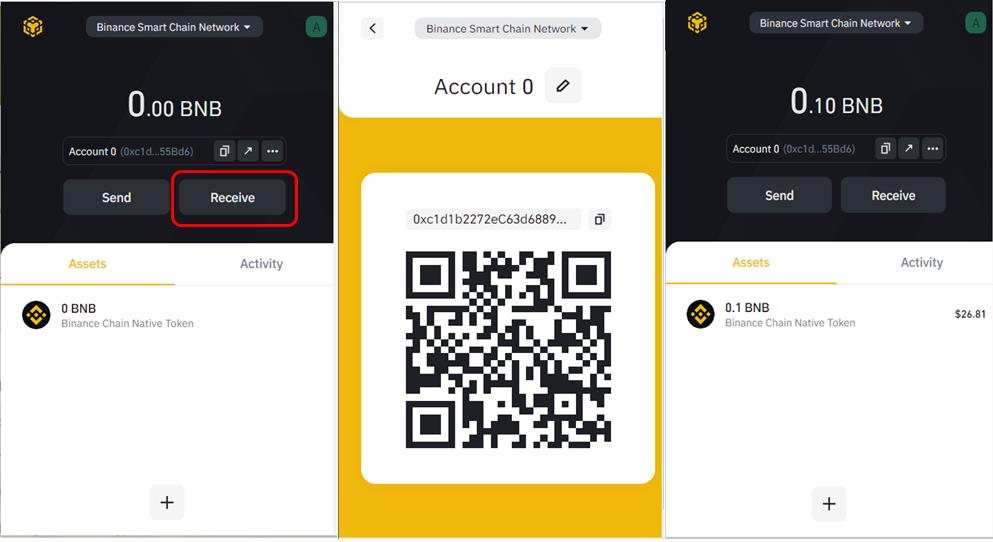
Be careful while sending/receiving funds. Since the wallet supports multiple networks, choose the correct network when you are copying your wallet address and also select the same network while transferring funds from other accounts.
Send
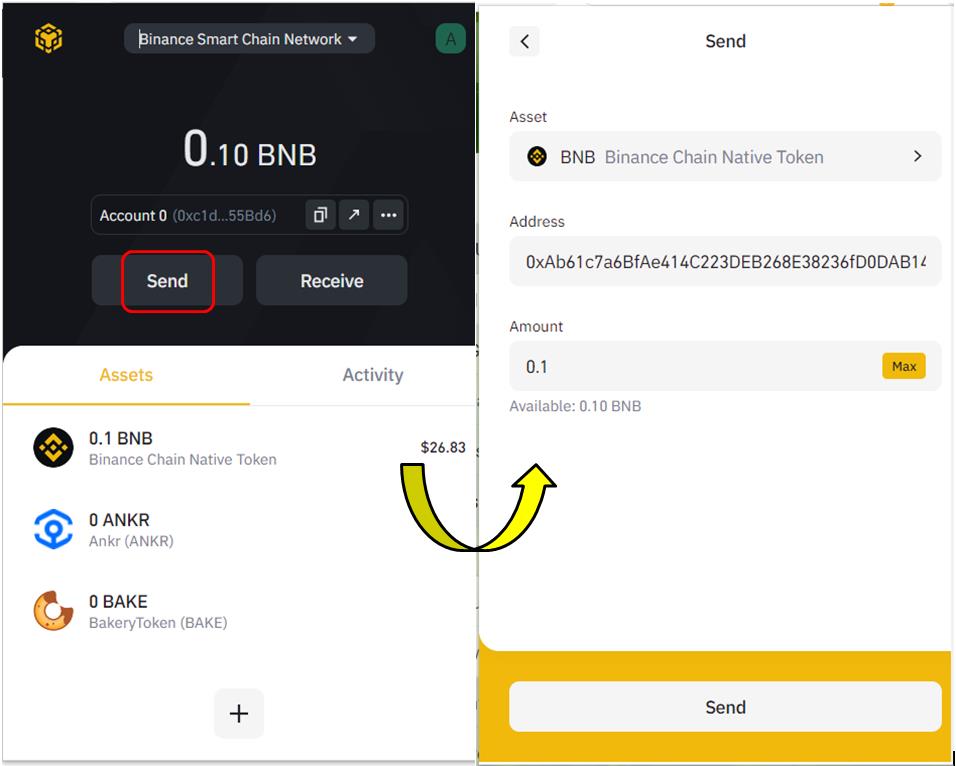
Using the Send option, you can transfer funds to other wallet users. Select the token first, and then enter the destination address and the amount that you would like to send. Once you have filled in these details, hit the Send button to confirm the process.
Add Token
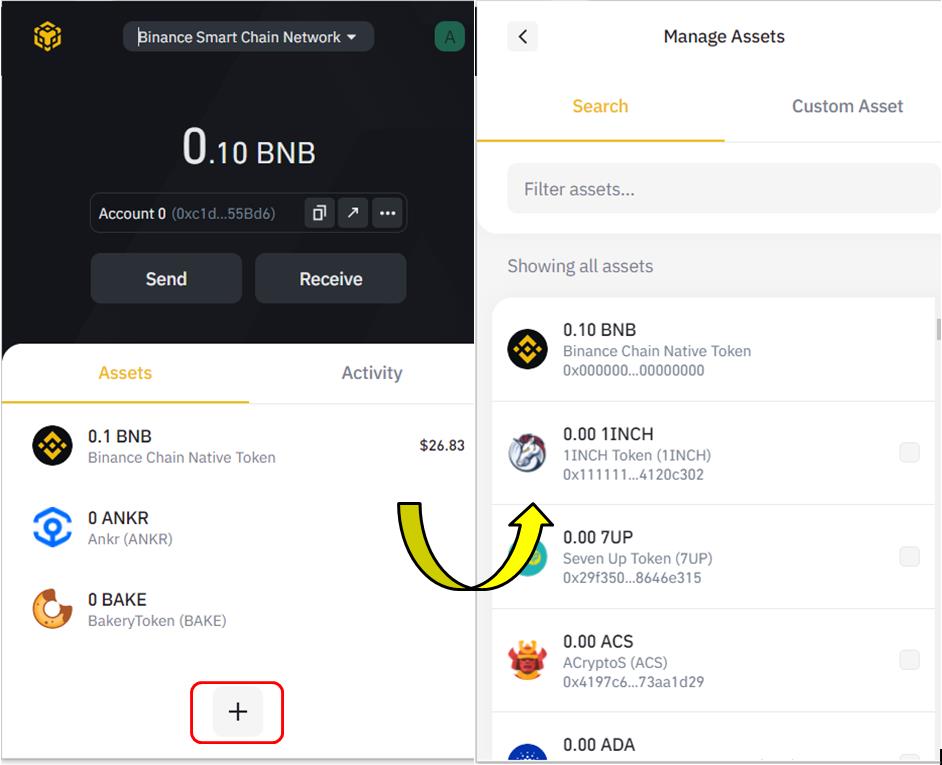
Using this option, you can add any token/custom token to your existing wallet coin list.
Different Options Available on Wallet Landing
Once you are on the wallet landing page, you will find the below options:
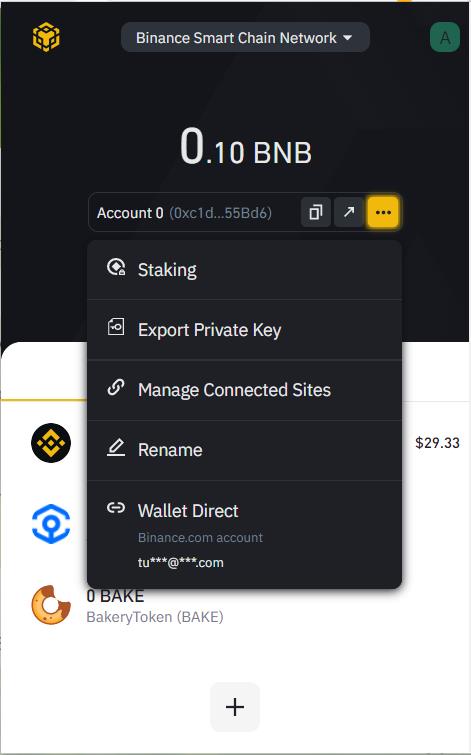
- Account Address – Users can press this button to copy their wallet address.
- BSC SCAN (arrow sign) – On clicking this button, you will be redirected to the Binance block explorer where you can check your transactions in detail.
- Staking – Binance Chain Wallet also allows the users to stake their tokens. To stake, click on the Staking button, and it will redirect you to this page.
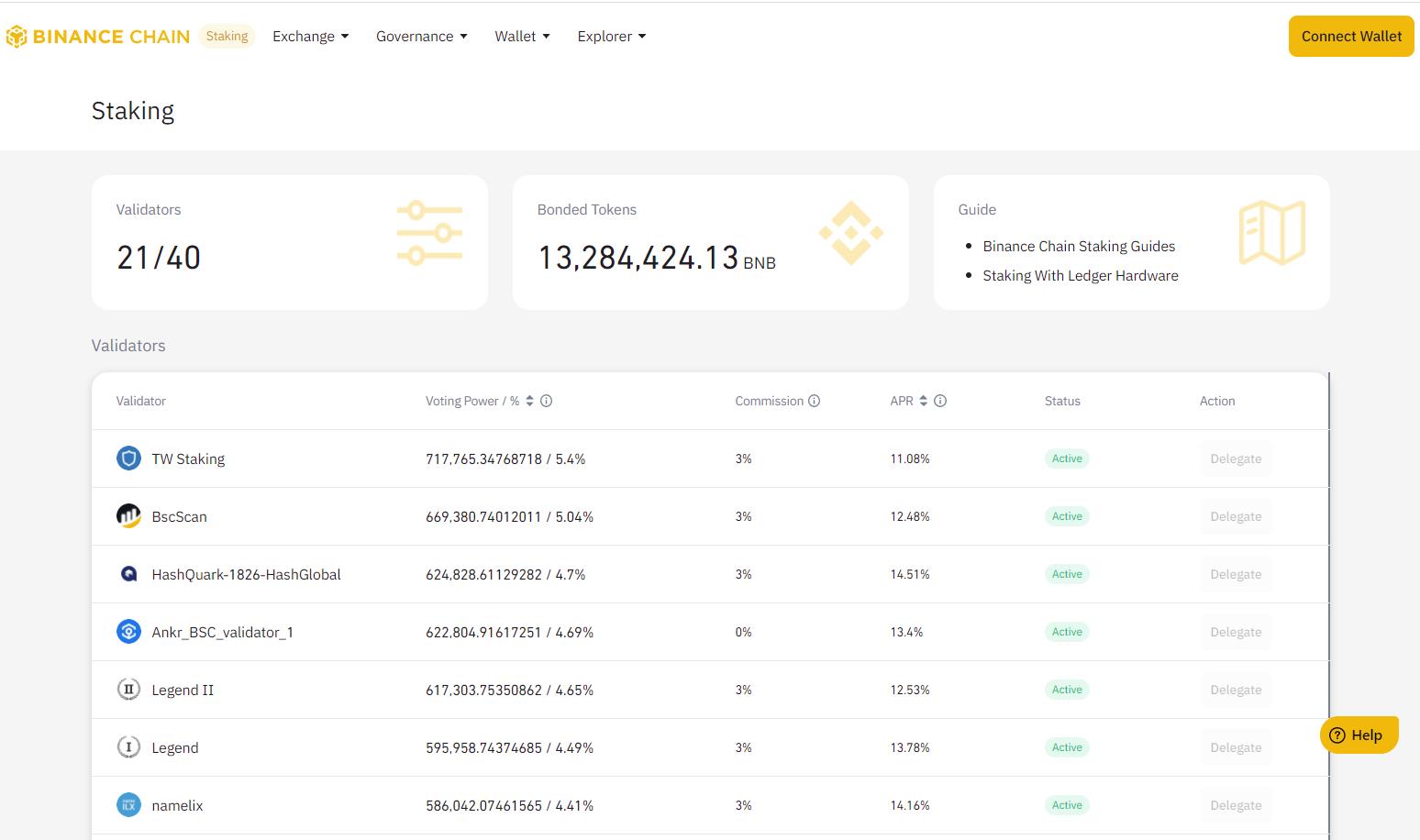
Users are required to connect their Binance Chain Wallet again here. You can see the list of validators with different delegation parameters. Choose your desired validator and click on the Delegation button against it.
A page will pop-up where you need to enter the amount of tokens that you wish to delegate. Once you fill in the details, click on the Delegation button.
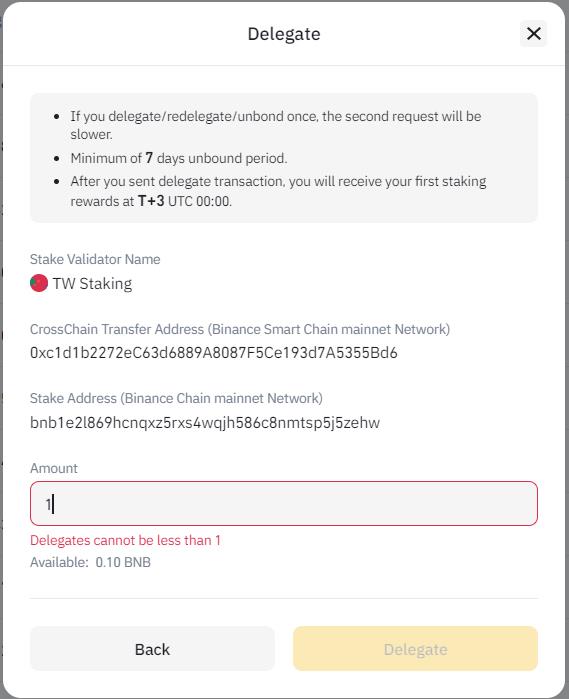
You can check your delegation details from the My Staking tab.
- Export Private Key – Copy/download your private keys from here.
- Manage Connected Sites – Remove (single/multiple) connected sites.
- Rename – Use this option to rename your account.
- Wallet Direct – Check the Binance exchange account connected to your Binance Chain Wallet.
In the next part of this article series, we will explain the remaining features along with one of the most important functionalities supported by the Binance Chain Wallet that enables the users to link their exchange account with the wallet application.
Join us on Telegram to receive free trading signals.
For more cryptocurrency news, check out the Altcoin Buzz YouTube channel.
Next up

Bitcoin ETFs Draw $1.07B in Three Days, Short of Rally-Era Pace
US spot bitcoin ETFs took in about $1.07 billion from Oct. 19 to 21, led by IBIT. Past steep rallies ran on months of $200 million-plus daily inflows.
 BTC
BTCRelated
More in Crypto NewsRelated
Bitcoin Drops Below $80K as Crypto Liquidations Top $834M
BTC ETH
ETH
Sui's Hashi Adds Anchorage Digital as $500M Bitcoin Launch Nears
BTC SUI
SUI
Bitcoin Core Speeds Up Fixes for AI found Bugs Drops
BTC
Bitcoin ETFs Lose $635M in a Day as DWF Study Says Flows Chase Price
BTC