How To Use the MetaMask Mobile Wallet
MetaMask is a browser plugin that is used as an Ethereum wallet. In this article, we will explain how you can create and import a MetaMask mobile wallet and the different features/activities that you can do with the mobile wallet.
By Victor
MetaMask is the most famous browser extension that allows the users to store Ethereum and other ERC20 tokens and run dApps without being part of the Ethereum network as an Ethereum Node.
On September 3, 2020, MetaMask launched a mobile wallet application for iOS and Android users.
MetaMask mobile users can send and receive digital assets. They can also store non-fungible tokens (NFTs). One of the most attractive features of the mobile wallet is the sync option which allows the desktop extension users to sync their mobile wallet with their desktop wallet by scanning a QR code.
Table of Contents
Toggle- Installation guide (Android mobile)
- Send
- Receive
- Add token
- Collectibles
- Browser
- Transaction history
- Settings
- Connect with Uniswap
- Conclusion
Installation guide (Android mobile)
Users can download the MetaMask mobile wallet application from the Google Play Store (Android).
After installation, a pop-up window will come up that will let you do three different activities related to the wallet installation.
- Create A New Wallet
- Import Using Seed Phrase
- Sync With MetaMask Extension
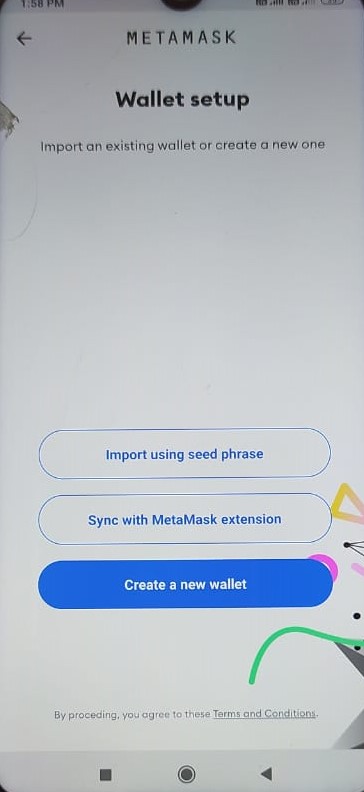
Create a new wallet
Choose to Create A New Wallet if you are a new user.
It will ask to set-up a wallet password. After the password setup, the application will display a 12-word key phrase which you need to store safely. In the final step, the app will ask you to verify the key phrases and let you use the wallet.
The wallet landing page will look like this.
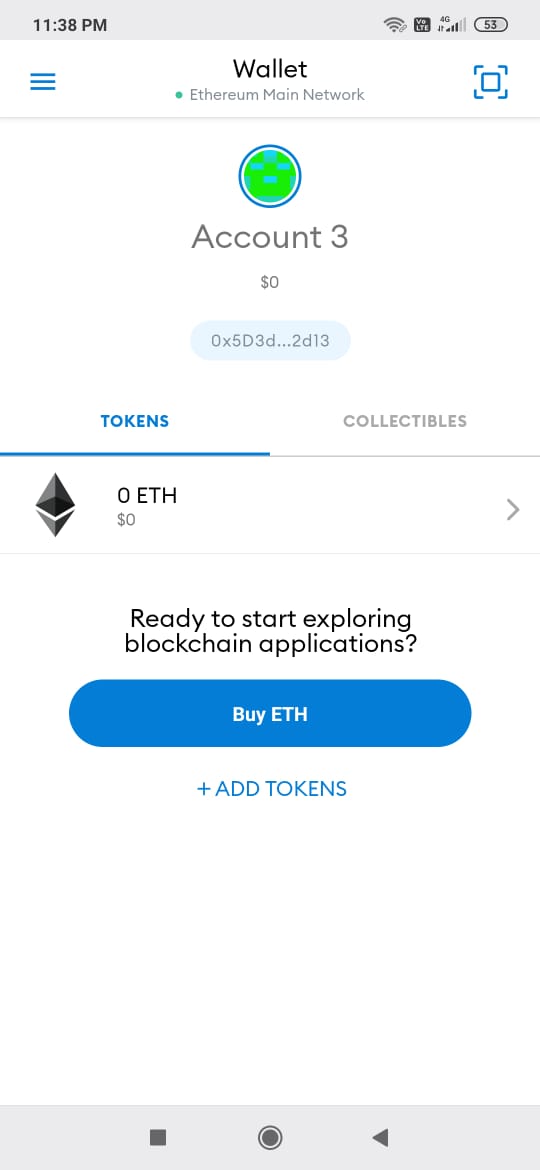
Import wallet
The import wallet option allows you to import your existing wallets in a new device. MetaMask gives you the option to import your wallet by providing private keys or by scanning a QR code. Provide the correct details and your wallet will be imported.
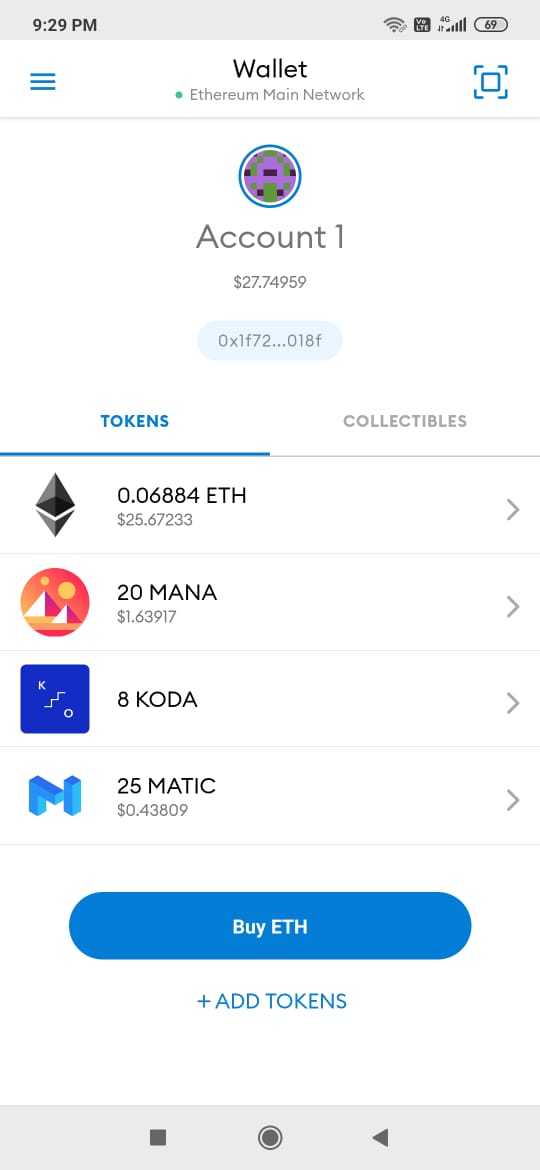
The wallet landing page contains the details of various tokens that a user holds.
Sync with MetaMask extension
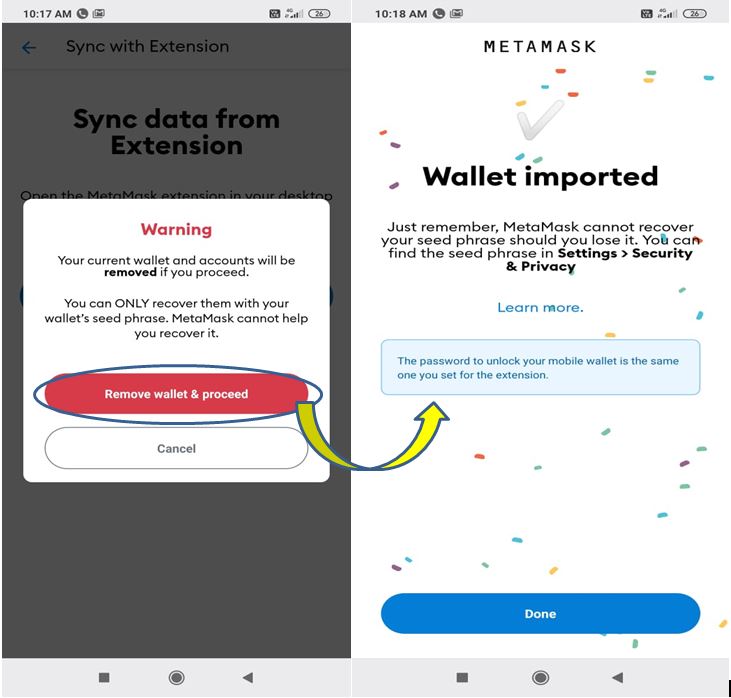
This feature allows you to import your desktop extension account to this device.
To connect extension with mobile, follow these below steps:
- Open the extension on desktop
- Go to Setting-> Advanced
- Click on Sync with Mobile
- Scan the QR code to start syncing
Note: Syncing the desktop browser extension with a mobile wallet will remove all your existing mobile wallet accounts.
Send
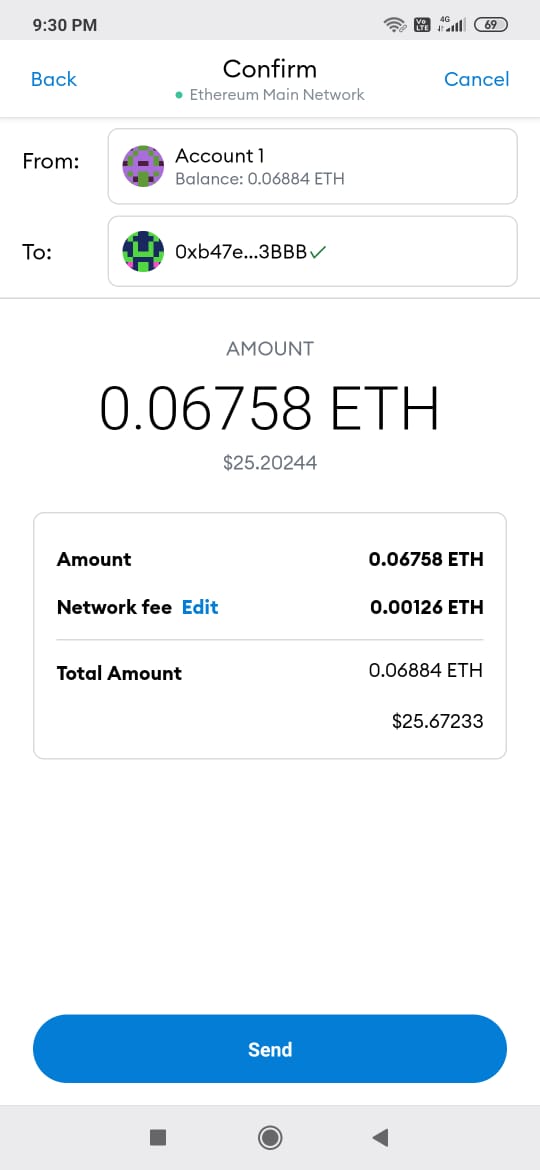
The Send option allows you to send tokens to another account. Enter the recipient address and the token type and value.
Receive
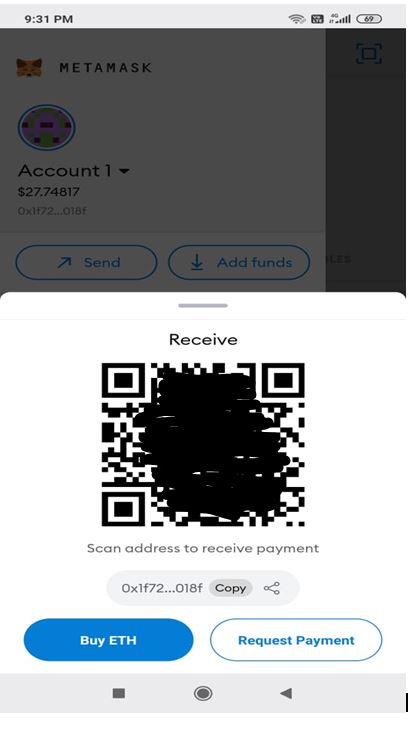
Through this option, you can share your public address and QR code to receive tokens.
MetaMask allows you to share your address through many social platforms like Twitter, Telegram, Whatsapp, etc.
Add token
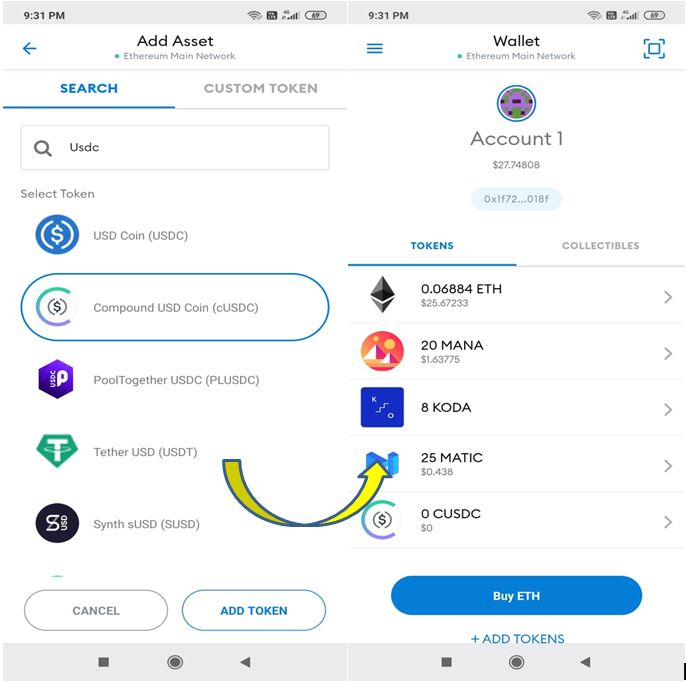
This option allows you to add any token/custom token to your existing wallet. To add a custom token, search by giving the contract address of the token.
Collectibles
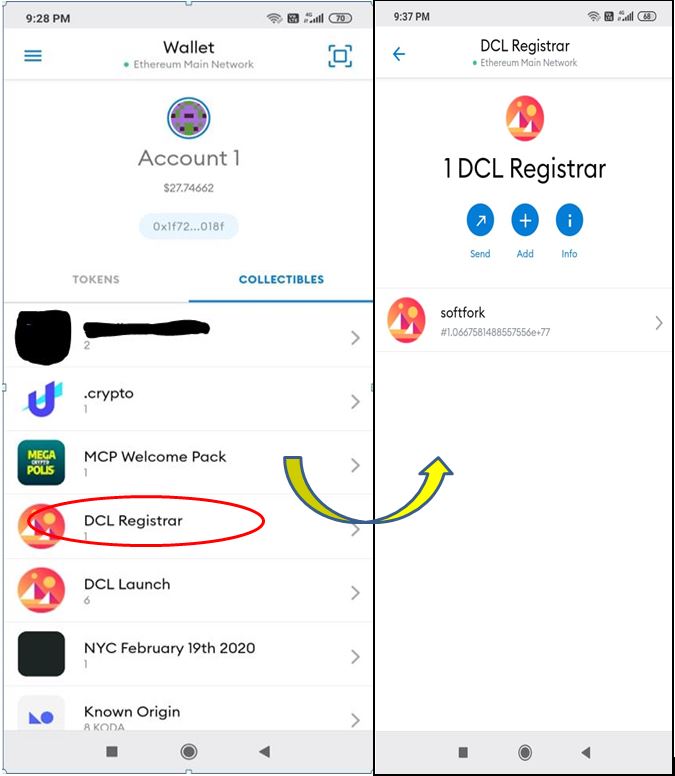
This tab contains the details of different collectibles(ERC-721 tokens) that a user holds. Using the MetaMask mobile wallet, you can send, receive, and add collectibles.
Browser
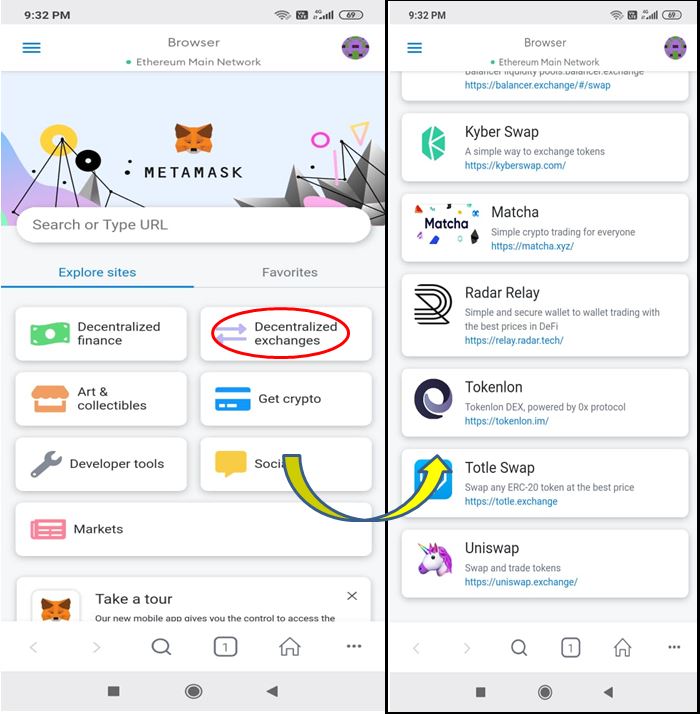
This option allows you to interact with a different decentralized application that the platform supports. If you navigate through the dApp browser, you can easily see a huge number of applications which are categorized into seven different main sections:
- DeFi
- Exchanges
- Art & Collectibles
- Get Crypto
- Market
- Social
- Developer Tools
Transaction history
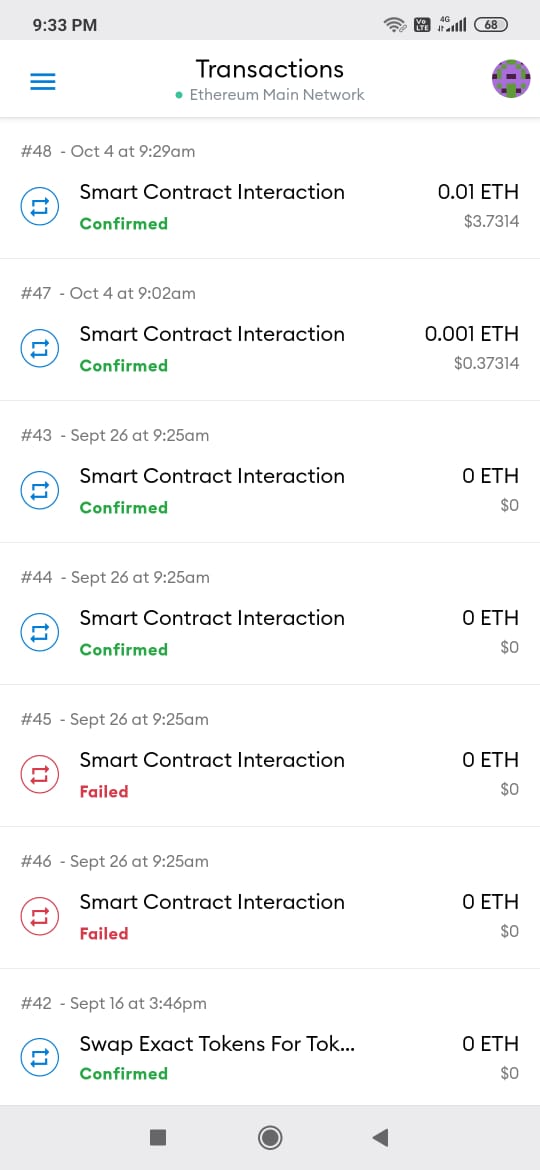
This tab contains details about the transactions made by the user.
Settings
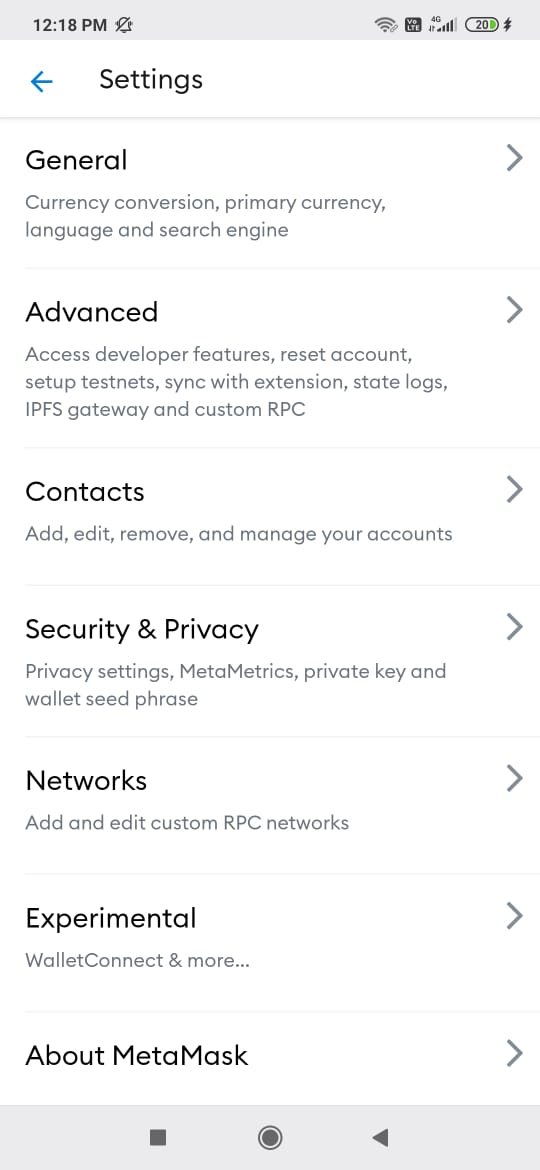
The Settings tab allows you to do various setup and admin-related work like managing wallets and contacts, private keys, seed phrase, privacy setup, language and currency preference, custom network setup, walletconnect, and many more.
Connect with Uniswap
MetaMask mobile wallet allows the users to connect with Uniswap and other dApps through walletconnect.
Follow the below steps to connect to Uniswap:
Navigate to Decentralized Exchanges.
Go to the Browser tab in your mobile wallet application and Select Decentralized Exchanges.
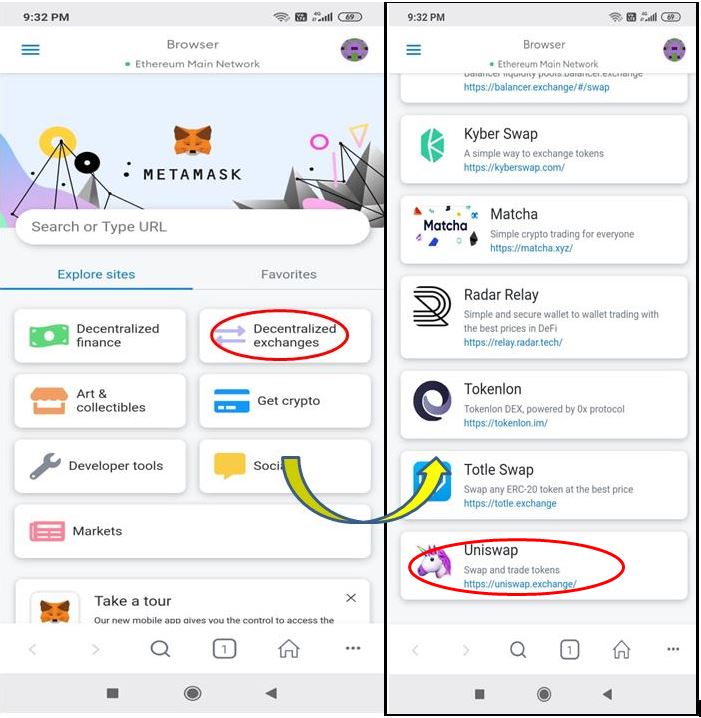
Select Uniswap
The Uniswap landing page will open.
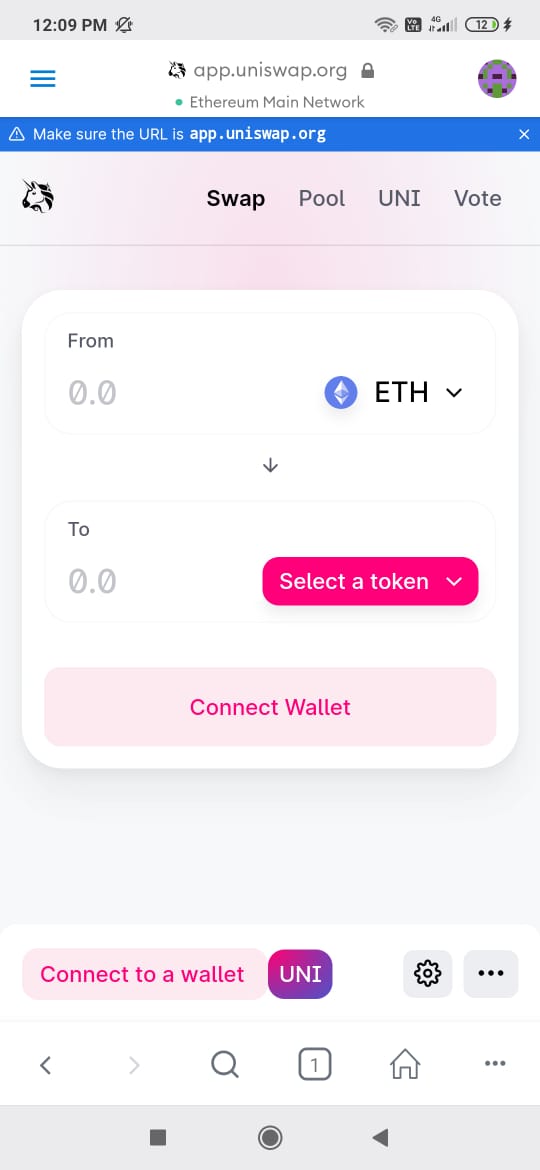
Connect your wallet.
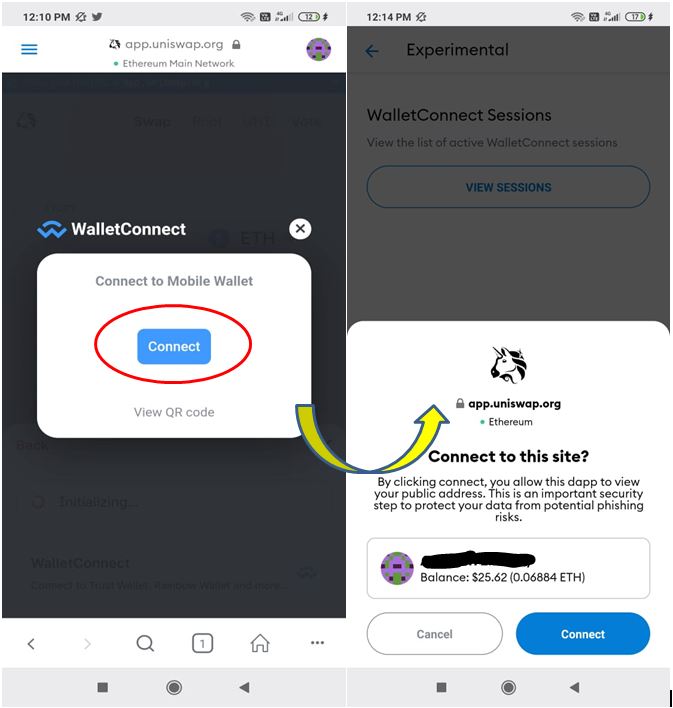
Walletconnect is done with Uniswap. Now you can perform any operation on the Uniswap platform.
Platform operation (swap)
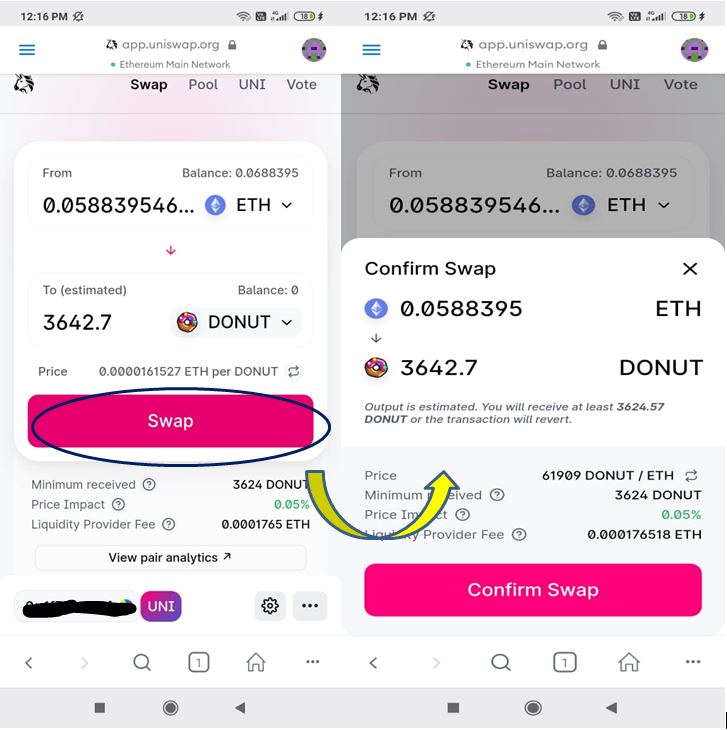
Click on Confirm Swap if you are satisfied with the transaction parameter. After that, the transaction will be submitted.
Conclusion
There is no doubt that MetaMask is currently the most famous Ethereum wallet available in the blockchain space. The launch of the mobile wallet application is one of the biggest steps towards mass adoption. Now you don’t need a desktop/laptop to access the application. The mobile application will increase the platform’s accessibility and will make the user’s trading experience simpler.
Next up
Bitcoin ETFs Draw $1.07B in Three Days, Short of Rally-Era Pace
US spot bitcoin ETFs took in about $1.07 billion from Oct. 19 to 21, led by IBIT. Past steep rallies ran on months of $200 million-plus daily inflows.
 BTC
BTCRelated
More in Crypto NewsRelated
Bitcoin Drops Below $80K as Crypto Liquidations Top $834M
BTC ETH
ETH
Sui's Hashi Adds Anchorage Digital as $500M Bitcoin Launch Nears
BTC SUI
SUI
Bitcoin Core Speeds Up Fixes for AI found Bugs Drops
BTC
Bitcoin ETFs Lose $635M in a Day as DWF Study Says Flows Chase Price
BTC